

Your sponsors don’t care about your DMARC record. They care about clicks. The catch is that clicks are the first thing to fall when inbox placement slips, and your ESP dashboard will keep showing a healthy “delivered” number the whole time.
“Delivered” only means the receiving server accepted the message. It tells you nothing about which folder the message ended up in. A newsletter can sit at 99% delivered while a chunk of its Gmail audience never sees it outside the spam folder.
This is the audit I’d run on any newsletter before a big sponsorship push. Most of it needs only a DNS login and free tools. A couple of steps need a few weeks of data before they tell you anything, and I’ll say which ones.
Step 1: Figure out which rules apply to you
Three mailbox providers publish formal requirements for bulk senders, and their triggers differ.
Gmail started enforcing its sender guidelines on February 1, 2024. Google defines a bulk sender as anyone sending close to 5,000 or more messages to personal Gmail accounts within a 24-hour period. Bulk senders must authenticate with SPF and DKIM, publish a DMARC policy of at least p=none, align the From domain with either SPF or DKIM, support one-click unsubscribe on marketing mail, and keep the spam rate shown in Postmaster Tools below 0.3%. Google recommends staying under 0.1% and processing unsubscribes within 48 hours. Google’s FAQ also says bulk sender status never expires.
Yahoo doesn’t publish a numeric threshold. Its bulk sender rules mirror Gmail’s: SPF and DKIM, a DMARC policy of at least p=none that passes, a one-click List-Unsubscribe header, unsubscribes honored within 2 days, and a spam rate under 0.3%.
Microsoft enforced its rules for Outlook.com, Hotmail, and Live addresses on May 5, 2025. If you send more than 5,000 messages a day to Microsoft consumer mailboxes from the same From domain, SPF and DKIM must pass and you need a DMARC record of at least p=none aligned with one of them. Microsoft originally planned to send failing mail to Junk. It now rejects it outright with 550 5.7.515 Access denied, sending domain does not meet the required authentication level.
| Real talk: “I’m under 5,000 a day, so none of this applies to me” is the wrong read. Gmail applies a smaller rule set to every sender, including SPF or DKIM and the same 0.3% spam ceiling. The 5,000 figure decides which rules you’re held to, and a growing list crosses it without sending you a notice. |
Audit step: Count the Gmail, Googlemail, Outlook, Hotmail, and Live addresses on your list. If any one provider group is near 5,000, a single send puts you over the line, so treat yourself as a bulk sender for that provider.
Step 2: Understand the impact before you fix anything
Before touching DNS, put a number on what’s riding on each mailbox provider. Your ESP’s domain report shows how your list splits across Gmail, Outlook, Yahoo, and the rest. Map that onto your revenue. If a third of your list is at Gmail, Gmail placement is carrying roughly a third of the clicks each sponsor will judge you on at renewal, and a third of your affiliate income.
Whichever provider has the most revenue at stake gets your fixes first.
Then find out where your issues actually land. An inbox placement test sends a real issue through your real sending setup to test mailboxes at each major provider and reports where each copy ended up. My company runs one as part of the Formula Inbox deliverability assessment, with results broken out by provider alongside authentication and blocklist checks.
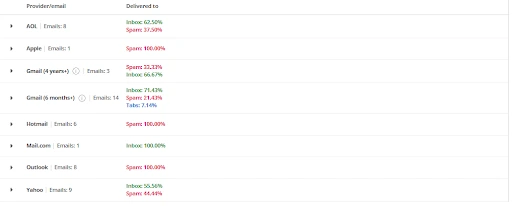
| Alt-text: A placement test shows where each provider put the same issue. Use a demo or your own test domain, never client results. Check with the Monetize Pros editor before including, since it shows a Formula Inbox product. |
| Real talk: A clean placement result doesn’t mean every reader gets you in the inbox. Test mailboxes have no history with your newsletter, and your real readers’ filtering depends partly on how they’ve engaged with you. Treat a spam-folder result as a strong signal and an inbox result as a good sign. |
Audit step: Run a placement test on your most recent sponsored issue and save the by-provider results. That’s your baseline. Run it again after you’ve worked through the rest of this list.
Step 3: Check your DNS records
You need three TXT records in good shape. Pull them yourself with dig on Mac or Linux, or nslookup -type=txt on Windows:
| dig +short TXT yournewsletter.com dig +short TXT _dmarc.yournewsletter.com dig +short TXT s1._domainkey.yournewsletter.com |
Replace s1 with your actual DKIM selector. You’ll find it in Step 4.
SPF
Your root domain gets exactly one SPF record. A healthy one looks like this:
| v=spf1 include:_spf.google.com include:mailgun.org ~all |
Two problems show up again and again. First, multiple records. If a new tool told you to “add this SPF record” and you added a second v=spf1 line instead of merging, RFC 7208 says the result is a permanent error (permerror). SPF fails for everything. Second, the lookup limit. RFC 7208 caps SPF evaluation at 10 DNS-querying terms (include, a, mx, ptr, exists, redirect), and nested includes count against the total. Go over and you get the same permerror. MXToolbox’s SPF lookup counts them for you.
| Real talk: SPF matters less for your newsletter than most guides suggest. SPF checks the Return-Path (bounce) domain, and on most ESPs that’s the ESP’s domain, so SPF passes for them and never aligns with yours. DKIM is what carries your domain through DMARC. If your ESP offers a custom return-path domain, set it up and you get SPF alignment too. |
DKIM
DKIM is where newsletter setups break most quietly. Your messages can be signed and still fail alignment, because the signature belongs to the ESP. The d= value in the signature has to be your domain (or a subdomain of it). If it says d=youresp.com, look for “domain authentication” or “custom sending domain” in your ESP settings. It usually means adding two or three CNAME records that point at keys the ESP manages. Choose 2048-bit keys if your ESP lets you pick.
DMARC
A starter record that meets Gmail, Yahoo, and Microsoft rules:
| v=DMARC1; p=none; rua=mailto:[email protected] |
The rua tag sends you daily aggregate reports from receivers. They arrive as XML, which no human should read raw, so route them to a DMARC report processor (several have free tiers). The reports show every server sending as your domain and whether each one aligns. If you send from a subdomain like news.yournewsletter.com and it has no DMARC record of its own, it inherits the root domain’s policy.
Moving to p=quarantine or p=reject isn’t required by any of the three providers. It protects your domain from spoofing, and it also starts junking any legitimate tool you forgot about. My suggestion: stay at p=none until a few weeks of reports show every real sender aligned, then tighten.
Audit step: Run the three commands above and save the output. You’re looking for one SPF record under 10 lookups, a DKIM key at your own domain, and a DMARC record with a working rua address.
Step 4: Read the headers on a real issue
DNS tells you what’s published. Headers tell you what receivers actually saw. Send your latest issue to a personal Gmail address, open it, click the three-dot menu, and choose “Show original.” The summary at the top should read:
- SPF: PASS
- DKIM: PASS with domain yournewsletter.com
- DMARC: PASS
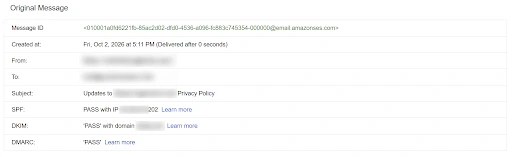
| Alt text: Gmail’s Show original page for a newsletter issue, with SPF, DKIM, and DMARC all showing PASS and the DKIM line naming the newsletter’s own domain. Caption: The DKIM line should name your domain, not your ESP’s. Capture from an issue sent to your own Gmail account. Crop out the recipient address. |
If DKIM passes with your ESP’s domain instead of yours, alignment is failing and Step 3’s DKIM fix applies. Scroll down to the DKIM-Signature header and note the s= value. That’s the selector you need for the dig command.
While you’re in there, search the raw message for these two headers:
| List-Unsubscribe: <https://yournewsletter.com/unsubscribe/abc123>, <mailto:[email protected]> List-Unsubscribe-Post: List-Unsubscribe=One-Click |
The second line is what RFC 8058 one-click unsubscribe requires. Hosted newsletter platforms generally add both. Self-hosted setups, like a WordPress plugin sending over SMTP, are where they go missing.
Then test that unsubscribing works. Click the “Unsubscribe” link Gmail shows next to your sender name, and confirm the address is suppressed in your ESP within Google’s 48-hour window. An unsubscribe that silently fails is how a reader who wanted out becomes a reader who clicks “Report spam.”
Audit step: Screenshot the Show original summary and both unsubscribe headers. If either header is missing, fix that before anything else on this list.
Step 5: Connect the mailbox provider dashboards
Google Postmaster Tools is the one to set up today. Add your domain and verify it with a TXT record. When Google retired the v1 interface on September 30, 2025, the old Domain and IP Reputation charts went with it. In their place is a Compliance status dashboard that grades each Gmail requirement as Compliant, Needs work, or No data found. The Spam rate dashboard is the number that matters most. Google says data can be incomplete on low-volume days, so a weekly newsletter will see gaps between sends.
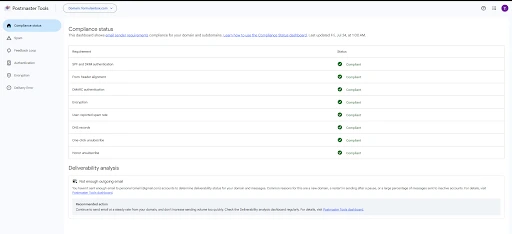
| Alt text: Google Postmaster Tools v2 Compliance status dashboard listing each Gmail sender requirement with its status. Caption: Postmaster Tools v2 grades each Gmail requirement as Compliant, Needs work, or No data found. |
Yahoo’s Complaint Feedback Loop sends you reports when Yahoo users mark your mail as spam. It’s keyed to your DKIM domain, which is one more reason Step 3’s DKIM fix comes first.
Microsoft SNDS shows reputation data, but per IP address, and you only get access to IPs you’re responsible for. If your ESP sends you from a shared pool, you can’t register those IPs, and the data would blend every sender on the pool anyway. For Outlook, your best signals are your own bounce logs (search for 5.7.515) and click rates on the Microsoft segment of your list.
| Real talk: Don’t buy a dedicated IP just to get into SNDS. A dedicated IP’s reputation rests entirely on your own volume and consistency, and a weekly newsletter with a modest list often does better on a well-run shared pool. Have your ESP make that call with you, based on actual volume. |
Audit step: Verify your domain in Postmaster Tools and sign up for Yahoo’s CFL now. They only collect data from the day you connect, which is why this step comes before you need it.
Step 6: Do the complaint math
Spam rate is the most direct signal you control, and the thresholds are tighter than they look. If an issue reaches 10,000 Gmail inboxes, 0.3% is 30 complaints and 0.1% is 10.
For publishers, complaints tend to trace back to how people joined. Go through your signup sources from the last 90 days and look hard at these:
- Giveaway or contest entries, where the reader wanted the prize, not the newsletter
- Recommendation and cross-promotion networks that subscribe readers with one click
- Lead magnets where the reader wanted the PDF and forgot the subscription
- Long gaps between signup and first send, so the first issue arrives from a name they don’t recognize
- Unsubscribe links buried in a sponsor-heavy footer
Double opt-in is the blunt fix. You’ll lose some subscribers who never confirm, and that hurts the list-size number in your sponsor deck. In exchange, everyone left has asked for the newsletter twice. Whether that trade is worth it depends on how much of your growth comes from the sources above.
Audit step: Check the last 30 days of Gmail spam rate in Postmaster Tools, Yahoo Senderhub, and Microsoft SNDS (if applicable). If you see any day at or above 0.1%, match the date to that day’s send and to recent subscriber sources.
Step 7: Stop grading yourself on opens
Apple Mail Privacy Protection downloads remote content, including your tracking pixel, in the background when a message arrives, whether or not the reader ever opens it. For readers who have it turned on, every delivered issue can register as an open. Your open rate is now partly a measure of how many of your readers use Apple Mail.
The worst casualty is list hygiene. A sunset policy based on opens never removes an Apple Mail address, because Apple keeps “opening” on its behalf long after the reader has stopped. Subject line tests that pick a winner by opens are skewed by the same noise.
Switch your engagement definition to clicks, plus replies if you track them. A suggested starting point for a weekly newsletter: anyone with no clicks in 120 days gets one re-engagement email, and anyone who ignores that gets suppressed. Daily senders can use a shorter window. If your ESP flags machine opens separately, exclude them from every report you look at.
| Real talk: Your sponsors will still ask for open rate, and refusing to give it makes you look like you’re hiding something. Give it to them, alongside unique clickers and click-through rate, with one line explaining why opens are inflated. |
Audit step: Rebuild your “engaged” segment on clicks and compare its size to your open-based segment. The difference is roughly how many addresses you’ve been mailing on false signals.
Step 8: Audit the links you’re paid to include
Newsletters carry more third-party links than most senders, and filters read every one. Open your last three sponsored issues and check:
- Public link shorteners. They hide the destination, and spammers use the same shortener domains you do. Use your affiliate network’s direct link or your ESP’s click tracking instead.
- Your click-tracking domain. If tracked links point to a shared ESP domain, set up a branded one (for example, a CNAME from links.yournewsletter.com to your ESP). Your links then carry your reputation instead of the pool’s.
- Redirect chains. Paste each affiliate link into a redirect checker. Three or four hops through tracking domains you’ve never heard of isn’t unusual, and any one of those domains can land on a blocklist.
- Blocklisted domains. Look up each sponsor and affiliate domain on Spamhaus’s domain lookup. A listed sponsor domain is rare, and worth knowing about before you send.
Audit step: List every distinct domain in your last sponsored issue. Any domain you can’t explain gets replaced or removed.
Step 9: Set alerts so the next audit is short
A one-time audit goes stale the first time you add a new tool or a new signup source. Suggested starting triggers, to adjust once you know your normal ranges:
- Gmail spam rate at or above 0.1% on two sends in a row
- Compliance status in Postmaster Tools changing to “Needs work” on any line
- Any 5.7.515 bounce from a Microsoft domain
- A new, unaligned source appearing in your DMARC reports
- Hard bounce rate on a single send above 2%, which usually means a bad import or an old segment
Audit step: Set up the alerts your tools support natively, and put the rest, plus a 30-minute look at trend lines, on a monthly checklist with an owner’s name on it.
Truitt Dill is the founder of Formula Inbox, an email deliverability consultancy working with B2B SaaS companies, e-commerce brands, and agencies to get their email into the inbox and keep it there.